Setting Up Tailscale for Your OpenClaw Instance
Securely expose your OpenClaw AI agent gateway with Tailscale. Zero-config mesh networking with no open ports or public IP required. Step-by-step setup.
When I started running my own OpenClaw instance, I hit a common problem: how do I access my AI assistant from anywhere without exposing ports to the internet? Traditional approaches like port forwarding, reverse proxies, or even Cloudflare Tunnel all have their trade-offs. Then I discovered Tailscale, and it solved the problem elegantly.
Here’s how to set up Tailscale for your OpenClaw instance — giving you secure, zero-config access from any device without opening a single port on your firewall.
The Problem: Remote Access Without Public Exposure
OpenClaw runs as a gateway on a server — whether that’s a VPS in the cloud or a home server behind your router. You want to:
- Access your AI assistant from your phone while traveling
- Manage the gateway from your laptop at a coffee shop
- Keep everything secure and private
- Avoid the complexity of traditional networking
Traditional approaches:
| Approach | Pros | Cons |
|---|---|---|
| Port Forwarding | Direct access, no middleman | Exposes ports to internet, requires static IP, NAT traversal headaches |
| Reverse Proxy (nginx/Caddy) | SSL termination, flexible routing | Still need to expose port 80/443, manage certificates, configure DNS |
| Cloudflare Tunnel | No open ports, free tier | Third-party dependency, adds latency, limited protocol support |
What I wanted was something simpler: a private network that just works, with no configuration overhead and no public exposure.
Why Tailscale?
Tailscale is a zero-config mesh VPN built on WireGuard. Here’s why it’s perfect for AI agent infrastructure:
- Zero open ports: Your server doesn’t need any inbound firewall rules
- Works behind NAT: Home networks, restrictive corporate networks — doesn’t matter
- Encrypted by default: All traffic uses WireGuard (state-of-the-art crypto)
- Free for personal use: Up to 100 devices, 3 users
- Stable IPs: Each device gets a persistent
100.x.x.xIP address - Cross-platform: Linux, macOS, Windows, iOS, Android
Think of it as creating a private LAN that spans all your devices, no matter where they are physically.
Step 1: Install Tailscale on Your Server
SSH into your OpenClaw server and install Tailscale using the official installation script:
curl -fsSL https://tailscale.com/install.sh | shThis script detects your distro and installs the appropriate package. For Ubuntu/Debian it uses apt, for Fedora/RHEL it uses dnf, and so on.
Start Tailscale and authenticate:
sudo tailscale upThis command will print a URL. Open it in your browser to authenticate with your Tailscale account (you can use Google, GitHub, or email). Once authenticated, your server joins your tailnet (Tailscale’s term for your private network).
Verify the connection:
tailscale statusYou should see your server listed with a 100.x.x.x IP address. Note this IP — you’ll use it to access OpenClaw.
tailscale ip -4This prints just the IPv4 address, something like 100.64.1.5.
Step 2: Configure OpenClaw for Tailscale
OpenClaw has built-in Tailscale integration. There are two main modes:
Option A: Bind Directly to Tailnet (Simple)
This mode makes the Gateway listen on your Tailscale IP instead of 127.0.0.1. No Tailscale Serve/Funnel needed — just direct HTTP access over the VPN.
Edit ~/.openclaw/openclaw.json:
{
  "gateway": {
    "bind": "tailnet",
    "port": 18789,
    "auth": {
      "mode": "token",
      "token": "your-secure-token-here"
    }
  }
}Important: When bind is set to tailnet, the gateway only listens on the Tailscale IP. Local access via http://127.0.0.1:18789 won’t work. This is great for security but means you’ll need Tailscale running to manage the gateway locally.
Option B: Tailscale Serve (HTTPS + Loopback)
This mode uses Tailscale’s serve feature to expose the gateway over HTTPS while keeping it bound to localhost. Tailscale handles TLS and routing.
{
  "gateway": {
    "bind": "loopback",
    "port": 18789,
    "tailscale": {
      "mode": "serve"
    },
    "auth": {
      "mode": "token",
      "allowTailscale": true
    }
  }
}
When tailscale.mode is serve, OpenClaw automatically configures tailscale serve on startup, exposing the gateway at https://<machine-name>/ (using Tailscale’s MagicDNS).
The allowTailscale: true setting lets Tailscale identity headers authenticate requests, so you don’t need to manually supply tokens when accessing via the Serve URL.
Which should you choose?
- Bind to tailnet: Simpler, no extra Tailscale features needed, plain HTTP over VPN
- Tailscale Serve: HTTPS, MagicDNS hostname, automatic identity-based auth
I use the direct bind approach because it’s simpler and I don’t need HTTPS inside my private network.
Step 3: Restart OpenClaw
After updating the config, restart the gateway:
openclaw gateway restartCheck the logs to confirm it’s listening on the Tailscale interface:
journalctl -u openclaw-gateway -fYou should see something like:
Gateway listening on http://100.64.1.5:18789Step 4: Access from Mobile
Install Tailscale on your phone:
- iOS: App Store
- Android: Google Play
Sign in with the same account. Your phone joins the tailnet and can now reach any other device.
Open your browser and navigate to:
http://100.64.1.5:18789(Replace with your server’s Tailscale IP.)
You’ll see the OpenClaw Control UI — chat, sessions, configuration, all accessible from your phone.
Note on messaging integrations: If you’re using Telegram or Signal to talk to your AI assistant, those channels still work normally. Tailscale is for accessing the management layer (the web UI, direct API calls, SSH). Your assistant can still send and receive messages through Telegram without Tailscale.
Step 5: Lock Down Your Firewall
Now that Tailscale handles all remote access, you can close every port on your firewall:
sudo ufw default deny incoming
sudo ufw default allow outgoing
sudo ufw enable
Your server has zero open ports to the public internet. All access happens over the encrypted Tailscale mesh.
If you need SSH access, you can use Tailscale SSH instead of opening port 22:
sudo tailscale up --sshThis enables Tailscale’s built-in SSH server, which handles key management and access control via your Tailscale ACLs. You can then SSH to your server from any tailnet device without managing SSH keys:
ssh user@100.64.1.5Security Benefits
Here’s what you gain by using Tailscale:
| Feature | Benefit |
|---|---|
| Zero open ports | No attack surface for port scanners and bots |
| WireGuard encryption | Modern, audited crypto for all traffic |
| Device-level ACLs | Control which devices can reach which services |
| MagicDNS | Human-readable hostnames instead of IPs |
| Tailscale SSH | No key management, audit logs, device trust |
| No certificate management | Tailscale Serve handles HTTPS automatically |
Compare this to traditional setups:
- Port forwarding: You’re exposing SSH or HTTP to the entire internet
- Reverse proxy: Still need to expose port 443, manage Let’s Encrypt renewals
- Cloudflare Tunnel: Cloudflare sees all your traffic (encryption terminates at their edge)
With Tailscale, traffic flows directly between your devices (peer-to-peer when possible), encrypted end-to-end, with no third party in the middle.
Network Topology
Here’s what the architecture looks like:
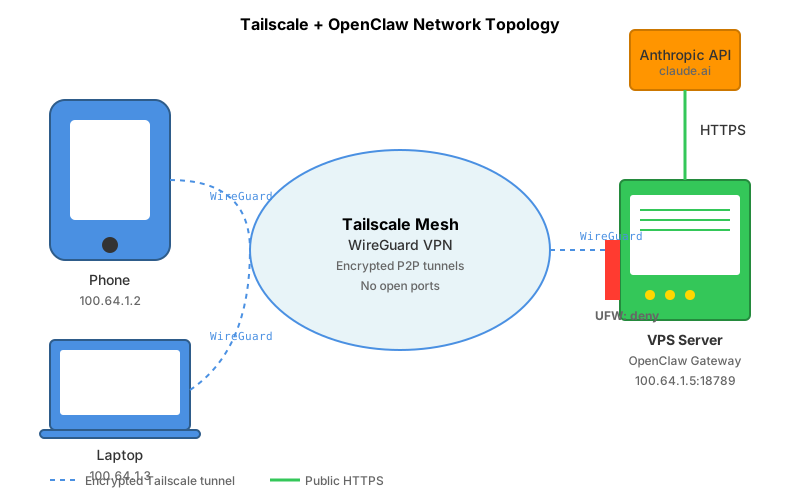
Your phone and laptop connect to the Tailscale mesh, which routes traffic directly to your VPS. The VPS runs the OpenClaw gateway, which in turn talks to the Anthropic API (or your local LLM). All communication between your devices and the VPS happens over WireGuard tunnels.
Advanced: Tailscale Funnel (Public Access)
If you need to share your OpenClaw instance with someone outside your tailnet, you can use Tailscale Funnel to expose it publicly:
{
  "gateway": {
    "bind": "loopback",
    "tailscale": {
      "mode": "funnel"
    },
    "auth": {
      "mode": "password",
      "password": "shared-secret-here"
    }
  }
}Important: OpenClaw requires auth.mode: "password" when using Funnel to avoid accidentally exposing your AI assistant to the public without authentication.
Funnel gives you a public HTTPS URL like https://your-machine.tailnet-name.ts.net. Anyone can access it, but they’ll need your password to authenticate.
I don’t recommend Funnel for general use — Tailscale’s strength is private networking. But it’s useful for demos or temporary sharing.
Comparison: Tailscale vs Alternatives
Here’s how Tailscale stacks up for AI agent access:
| Feature | Tailscale (direct bind) | Tailscale Serve | Cloudflare Tunnel | Port Forwarding |
|---|---|---|---|---|
| Open ports | None | None | None | 22, 80, 443 |
| Encryption | WireGuard (e2e) | WireGuard + TLS | TLS (terminates at CF) | None (or TLS DIY) |
| Setup complexity | Low | Low | Medium | Medium |
| DNS required | No (uses MagicDNS) | No | Yes | Yes |
| Works behind NAT | Yes | Yes | Yes | No |
| Third-party dependency | Tailscale (open source) | Tailscale | Cloudflare | None |
| Latency | Peer-to-peer (low) | Peer-to-peer | Via CF edge | Direct |
| Free tier | 100 devices | 100 devices | Unlimited | N/A |
For personal AI infrastructure, Tailscale (either mode) wins on simplicity and security.
Real-World Usage
I’ve been running OpenClaw over Tailscale for weeks now. Here’s what works well:
- Mobile access: I message my AI assistant from my phone via Telegram. When I need to check logs or tweak configs, I open the Control UI in Safari.
- Multi-device workflow: I start a research session on my laptop, continue on my phone while commuting, then finish on my desktop at home — all seamless.
- Zero maintenance: No certificates to renew, no DNS to update, no port forwarding rules to debug. It just works.
The only gotcha: if Tailscale goes down (rare, but it happens), you lose remote access. For mission-critical setups, consider keeping SSH accessible via a bastion host or a second VPN as backup.
Troubleshooting
Gateway not accessible via Tailscale IP?
Check the bind setting:
grep -A 3 '"gateway"' ~/.openclaw/openclaw.jsonIf bind is "loopback", the gateway only listens on 127.0.0.1. Change it to "tailnet".
Can’t access from phone?
Verify both devices are on the same tailnet:
tailscale statusYou should see your phone listed.
Tailscale Serve not working?
Make sure Tailscale is logged in and HTTPS is enabled for your tailnet (check the Tailscale admin console).
Run manually to debug:
tailscale serve --bg 18789Then check https://<machine-name>/.
Conclusion
Tailscale + OpenClaw is a powerful combination for self-hosted AI infrastructure. You get:
- Secure, encrypted access from anywhere
- No firewall holes, no port forwarding
- Simple setup (literally 5 minutes)
- Free for personal use
If you’re running OpenClaw on a VPS or home server and want hassle-free remote access, Tailscale is the way to go. Install it, update your config, and enjoy your private AI assistant from anywhere in the world.
Now if you’ll excuse me, I have some agents to chat with — from my phone, over a secure WireGuard tunnel, without a single open port on my server.
Running into issues? Check the OpenClaw Tailscale docs and Tailscale’s knowledge base for troubleshooting guides.